Detailed Summary Reports
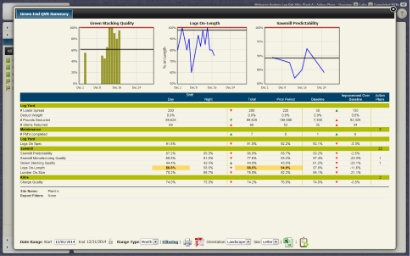
Figure 1: Example of a Detailed Summary Report |
- The Detailed Summary gets its name from its ability to subtotal and compare your KPI results by a common "Detail Field" that you specify, in this example the "Crew" field
- In the example above each KPI is broken down by Shift, displaying results for both Day and Night Shifts over the dates selected, using the Baseline Template
- In addition to the comparison by Shift, this report also compares overall performance (all Shifts combined) with the results from the prior reporting period (in this case the previous month), as well as the Baseline you've set for each individual KPI
- The column on the far right will indicate how many on-going Action Plans are specifically targeting each KPI (in this case there are 22 for the Sawmill Area)
- Colour coded arrows show whether the variance is above or below the target
- Above the rows of the report 3 (of a maximum 4) charts have been added within the report. These charts can be any Bar Graph, Line Graph or Histogram within incite and will trend data for the same date range as the summary report.
- There are 7 Summary templates that offer different ways to present data in a tabular format (some of the more common ones are Target, Baseline, Month and Period and Week, Month, Year to Date)
-
Learn how to create a detailed summary report
The Detailed Summary also provides several different ways to access more detail for some of the results displayed.
Some of these include:
KPI Information
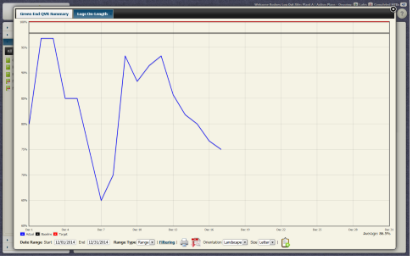
Figure 2: Click on a KPI Name will open up a line graph report for that KPI |
Total/Average Tabular Reports
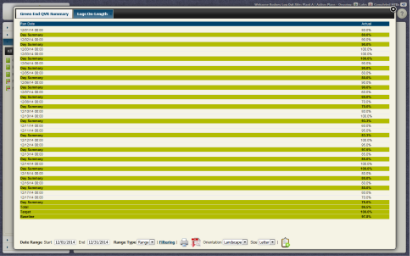
Figure 3: Clicking on a KPI result in the Total column will open up a tabular report |
Action Plan Drill Down
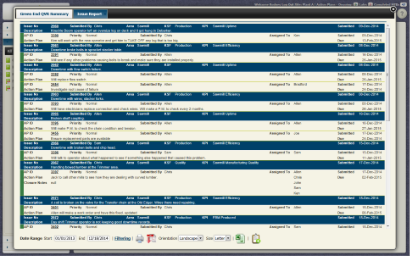
Figure 4: Issues for the Sawmill Area shown here (22 in total) |
- Clicking on the AP column for either an Area or specific KPI will bring up the Issue report
Detailed Summary Report Footers
- Report footers included in all Detailed Summary Reports
- Site Name is included by default
- Filtering by any selected options, Standard Fields (such as Shift, Crew, Machine) as well as any Combo Field options will display this in the footer
- In the example below we filter out Shift Both and Day
- In Figure 8, the report footer shows the filtering options we have included in this report
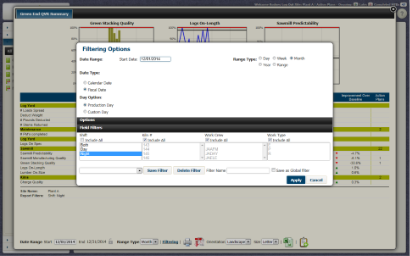
Figure 7: Report filtering panel shown, option Night for field Shift selected |

Figure 8: Detailed Summary report with filtering options selected |