Create a Detailed Summary Report
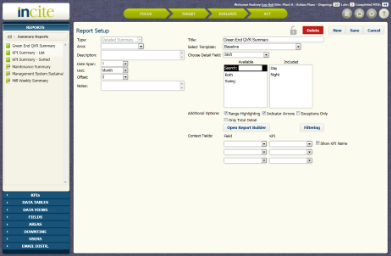
Figure 1 - Report Setup page for Detailed Summary Report |
Additional Options in Figure 1 can be selected:
- Range Highlighting:
- Indicator Arrows:
- Exceptions Only
- Only Total Detail: If turned on the report total column will display the total for ONLY the combofields displayed on the report, and not those omitted but included in the KPI calculation.
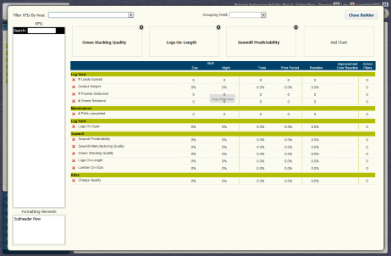
Figure 1: Report Setup page for Detailed Summary Report (Report Builder) |
Figure 2: Report Setup page showing the Report Builder for Detailed Summary Reports.
- Select "Detailed Summary" for the Type.
- Select the Template for the report, for example, Baseline, Target, or Budget.
- To select the KPI's, click Report Builder and choose the proper Area, and attached KPIs.
- Sub-Headers can be added by double-clicking on the subheader row on the bottom left and dragged to the required location between KPIs.
- Detail Fields can also be sorted and included, such as Shift, and Crew.
- Close the Report Builder.
- Fill in any remaining fields, and when finished, press Save.